Showing posts sorted by relevance for query stop motion. Sort by date Show all posts

July 18, 2014

how to make stop motion/time-lapse videos


   My favorite free app for making videos out of pictures (otherwise known as stop motion and time-lapse videos) is Stop Motion Studio. It is free and available for iOS. I have some tips and tricks for making both kinds of videos on your device using this app. Let's get started!
   The app looks like this when you first open it up:
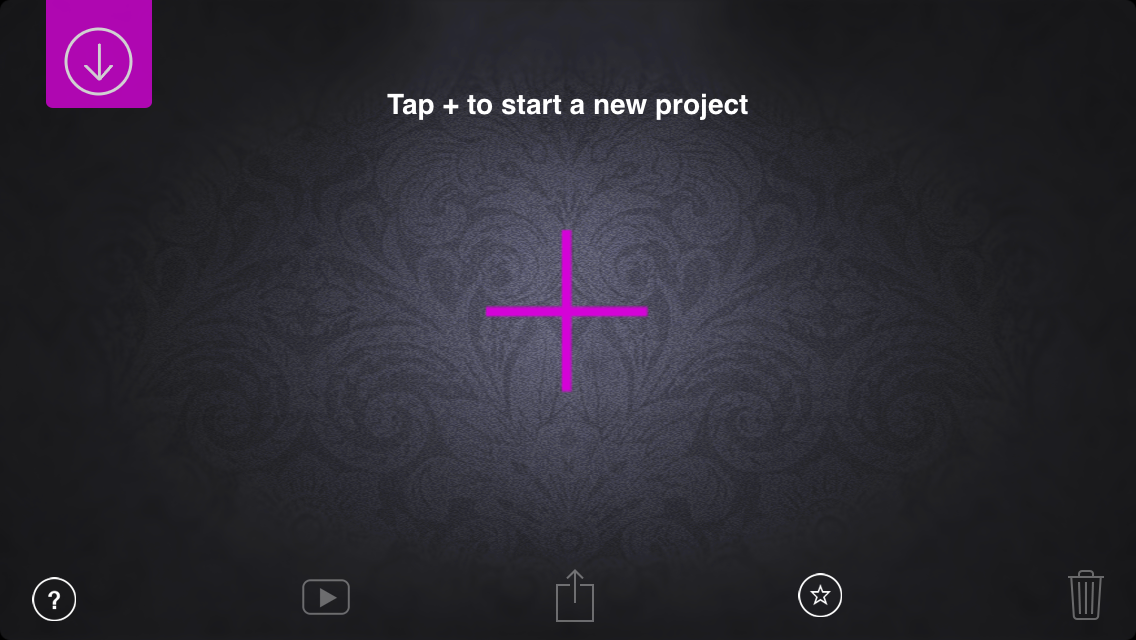


   Let's start out with making a stop motion animation. You have to click on the purple "+" to start a new project. When you do, you'll come to this screen.


   Click on the camera and you'll be taken to camera mode.


   Now all you have to do to make your video is set up your device in a safe place, prepare your "stage", and start taking photos! You can do this either by clicking on the red circle each time you want to take a photo, or setting a timer to make the phone take pictures automatically. You can do this by clicking the clock icon at the bottom of the screen, moving the slider to adjust how many seconds the app should wait before taking a picture, and then switching the timer mode on.


   You can also click the settings icon to access more options and features. You'll notice that some of them, such as the remote camera feature and the green screen feature, are not available unless you purchase them, but I think that the app is still a good option if you need a basic app that won't cost anything.


   Once you're done taking pictures, press the "X" button above the red circle to exit camera mode. Here, I've pressed the help button so that you can see what each button does.


   The settings button is probably the first one you will click when you start editing because that's where you can adjust how quickly the frames will be played.

   If you don't like a slide (sometimes your hand gets into the shot!), you can tap on it and click delete.


   Now I'll explain how to make a time-lapse video. Let's say you wanted to make a time lapse video of a sunset, because, let's face it, sunsets are perfect subjects for time-lapse videos! Your first step would be to set up your camera in a place where it would not move during the picture-taking process. It's better to place it outside, but if that is not an option, try to set it up in a place where window glare is as minimal as possible. Set your timer and then leave the app to do its job. Once you are done, click the "X" button and edit your video to your liking.

TIPS

1// The voice-over feature is great for making tutorial videos. You can make a time-lapse of you doing whatever it is that you're making a tutorial about and then add a voice-over explaining the steps.

2// If you are using daylight as your main source of light, make sure the project doesn't last so long that the sun starts to set while you're taking pictures. This will result in an awkward color change in your video. This happened to me once when I was making a time-lapse. It got cloudy outside all of a sudden and when I watched my video, there was a point where the frames suddenly adopted a greenish-gray tint. It looked horrible.

3// If you want to add music to your video but don't want to pay for the in-app feature, you can save the video to your camera roll and then open it up in a different video editing app, such as iMovie.

4// When making a time-lapse of a craft, a good angle to use is a bird's-eye view. That way the viewer can see everything that you are doing.
 

January 20, 2015

iphone tour

Hello there!

Recently I've noticed that I am very close to my 50th post (this is the 46th), so I must start thinking of ideas to make it special. Can you believe it? 50 posts! Five zero. Wow... it's so exciting.

Anyways, for today's post I have for you a tour of my iPhone, a blue 5C with a yellow case. I'll show you my folders and all of the apps that I have in each one. Let's get started!

First off, I currently have Harri's wonderfully peachy wallpaper set as my lock screen, and for my home screen I have set the Apple confetti wallpaper. It's so pretty!

Mostly what I have on my home screen are the Apple apps that came with. Photos, weather, clock, maps, app store, the basic stuff. They're not really organized in order of how often I use them, rather it's just how I randomly placed them a while back and now I have gotten used to the arrangement, hehe. I probably use the photos app, the settings, and the app store the most.

Down below are the four apps I use the most: Messages, Safari, Gmail, and the camera, of course!
On the next screen I have all of my folders where I sort my apps by type. First, I have "Extras" and "Photo & Video". Extras is pretty much just a folder where I hide all the apps that I don't use but can't uninstall, haha! Stocks, Compass, Newsstand, Game Center, Passbook, the default mail app (I prefer Gmail), and the calculator (since I can access that by simply swiping up, why would I go to the app tile?).

The "Photo & Video" category is a bit more exciting, so I'll tell you about what each app does:

1// Spark - lets you create quick, simple videos composed of short snippets. It's really simple and a great alternative for when you're making a video with your friends and don't want the complexity of an app like iMovie.

2// Stop Motion Studio - I reviewed this app a while back. I think the name of it pretty much describes it and there's not much else to say except that I tried a lot of different stop motion apps and this was definitely my favorite.

3// Afterlight - I love Afterlight! It's easy to use but can do a lot. It has filters, light leaks, frames, and many, many setting such as brightness, contrast, sharpness, noise, saturation, exposure, etc.) And you can create your own filters for even faster editing! I really recommend this app, I use it for all of my Instagram photos.
4// Studio Design - This app has so many different overlays and design elements that it can honestly get a little overwhelming. But thankfully they are organized into packs, so it's easy to find what you need.

5// Whitagram - A simple app that lets you add white borders to your non-square photos.

6// Hyperlapse - Really simple app for making beautiful timelapses.

7// Self Timer Camera - TimerCamera - Again, pretty self-explanatory. An app for taking timed photos (I'm not sure if I want to update to iOS8).

8// Pic Collage - for creating collages! Lots of different options and you can edit your photos in the app.
In my "Social" folder all I have is Skype and Youtube. In my games folder I have eight apps. Minecraft is one of my favorites. I also have White Tiles 4, which puts lots of really simple games into one app. Recently I downloaded Trivia Crack and it has been so much fun - it's a game where you play against friends or random people and answer questions to try and be the first person to collect the characters from all six categories. So I recommend all three of those. The others, if you're curious, are: Plague, Plants vs. Zombies, Two Dots, Heads Up! and Flappy Bird.
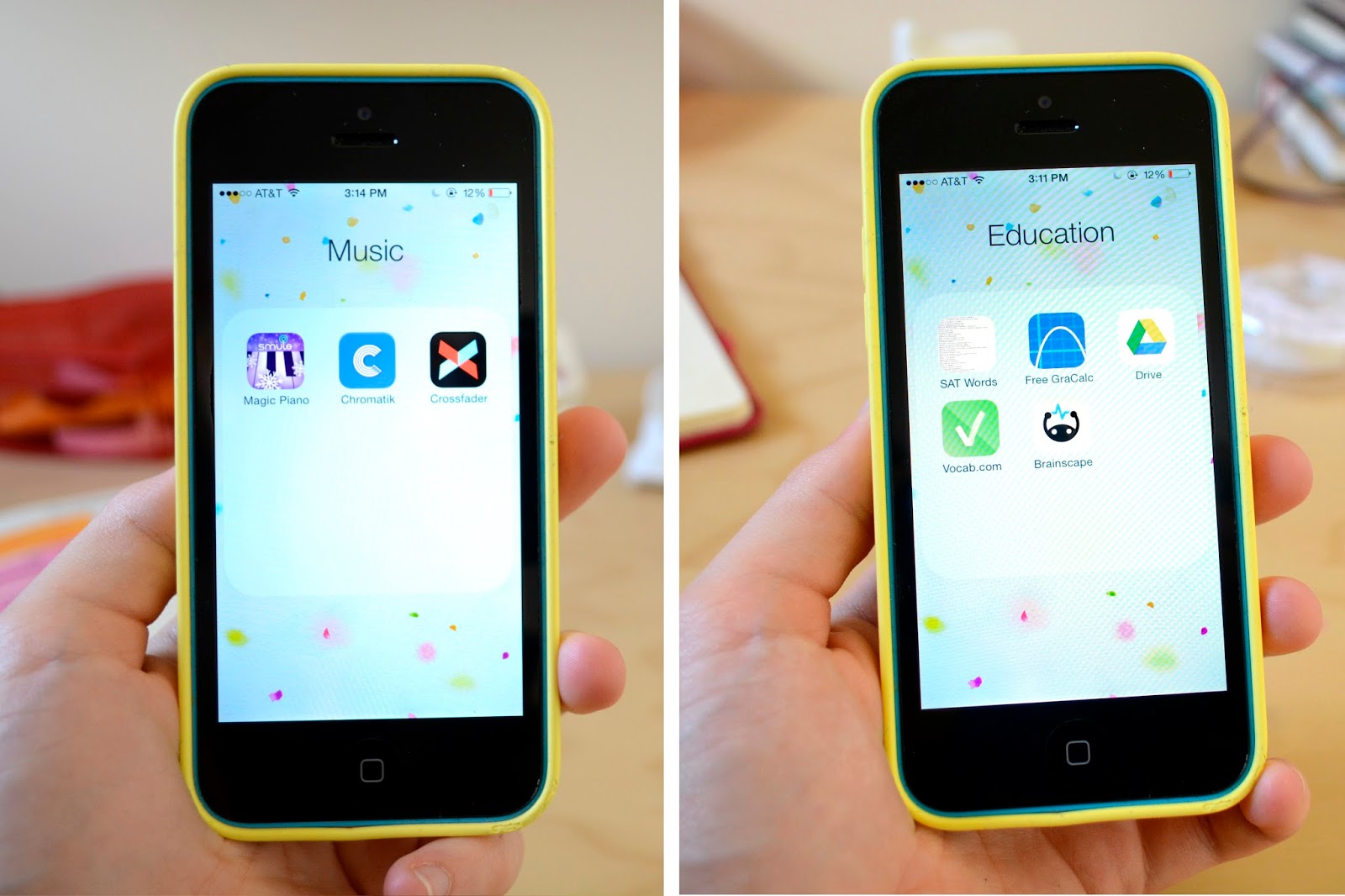
The next category is "Music", where I have:

1// Smule Piano - a game where you play songs by tapping dots that move across the screen, really fun.

2// Chromatik - a music app with some sheet music, a metronome, tuner, etc. I also did a review on this app earlier.

3// Crossfader - this is a really cool app. You choose two songs from the app's library and it automatically synchronizes them so that they sound good together. You can then publish your favorites so others can listen to your mixes.

In my "Education" category I have some things for learning: a bookmark for a website with SAT words, a graphing calculator (it was super helpful last year when I wanted to check the graphs I did for homework), Google Drive, Vocabulary.com, and Brainscape, a flashcard app.

Now for probably the most exciting category and the one I visit most throughout the day: "Blogging"! Here are the apps:

1// Pinterest - for collecting inspiration in the form of beautiful images. You can follow me on Pinterest here!

2// Bloglovin' - for keeping up with my favorite blogs.

3// a bookmark for my blog - I like to click on it whenever I know a scheduled post has gone live just to see how it looks.

4// Instagram - also for wonderful inspiration. I love Instagram!

5// Google Analytics - for tracking my page views and other info. Admittedly, I don't really use this app anymore, I'm not sure why...

And that is all for my iPhone tour! I hope you guys enjoyed this post and if you have a question about any of the apps that I mentioned here, feel free to comment.

Thanks for reading!